Use the left side bar for quick navigation
Getting Started
Let's walk through the DeltaFlowprint features and common use cases.
DeltaFlowprint can be customized directly from the FP>>> menu, giving you instant access to the most important footprint settings without opening the standard NinjaTrader indicator properties window.Footprint Types
The Footprint Type setting controls how order flow data is displayed inside each candle.To change the footprint style:
- Click the FP>>> menu.
- Locate the Style dropdown.
- Select the footprint type you want to display.
 Bid Ask
Displays Ask volume and Bid volume for every price level inside the candle.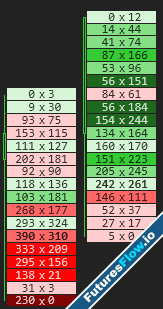
Use case
Use Bid Ask when you want to see exactly how much volume traded on the bid and ask at each price level.
Example
If a price level shows:
154 x 244
154 contracts traded on the Ask while 240 contracts traded on the Bid.
 Bid Ask Profile
Displays Bid and Ask volume while also using profile-style visualization to emphasize larger volume levels.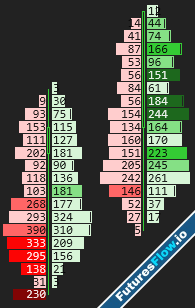
Use case
Use Bid Ask Profile when you want the detail of a Bid Ask footprint but with easier visual identification of high-volume areas.
Example
Large volume levels appear more prominent, making it easier to spot areas where the market spent the most time trading.
 Volume
Displays total volume traded at each price level.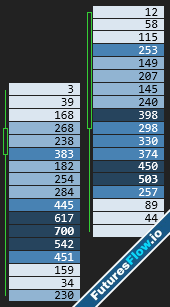
Use case
Use Volume mode when you only care about how much volume traded at each price and do not need to see Bid vs Ask activity.
Each number represents the total volume traded at that price level.
 Delta
Delta
Displays the difference between Ask volume and Bid volume at each price level.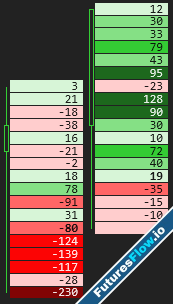
Formula:
Delta = Ask Volume − Bid Volume
Use case
Use Delta mode to quickly identify buying and selling pressure within the candle.
Example
+75
+20
-50
Positive values indicate more buying than selling. Negative values indicate more selling than buying.
 Profile
Displays a volume profile for each candle using the traded volume at every price level.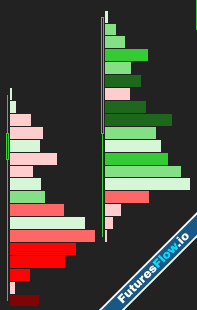
Use case
Use Profile mode when you want to focus on volume distribution rather than Bid/Ask details.
Example
A wide profile level indicates heavy trading activity at that price.
 Imbalance
Highlights price levels where buyers or sellers significantly outnumber the opposite side.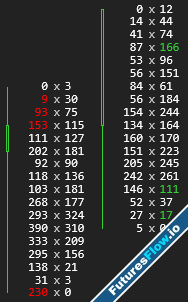
The imbalance ratio is controlled by the Imbalance Percent setting.
Use case
Use Imbalance mode to quickly identify aggressive buying or selling activity.
Example
Ask Volume = 300
Bid Volume = 100
With a 300% imbalance setting, this level would be highlighted as a bullish imbalance.
 Big Trade
Highlights trades that meet or exceed the configured Big Trade threshold.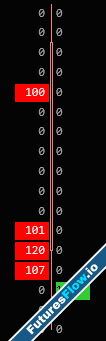
Use case
Set a minimum trade size and DeltaFlowprint will mark trades that exceed that value.
Example
Big Trade Threshold = 100
A single trade of 125 contracts will be highlighted.
A trade of 75 contracts will be ignored.
 Cell Colors & Shading
The Cell Color Mode setting controls how footprint cells are colored and shaded.
Under Display Settings, you can customize the appearance of the footprint by selecting your preferred colors:
- Ask Color – Used for bullish buying activity.
- Bid Color – Used for bearish selling activity.
- Volume Color – Used when the Volume footprint style is selected.
- Text Color – Used for text displayed in the Imbalance footprint style.
Under Cell Setup, you can control how color intensity is displayed throughout the footprint.
Shade Levels
Choose how many color intensity levels you want to use:
More shade levels provide greater visual detail and make it easier to identify the most active price levels within a candle.
- 1 Shade
- 2 Shades
- 4 Shades
Color Mode
The shading intensity can be calculated using one of two methods:
- Based on Volume
- Based on Delta
Based on Volume
In Based on Volume mode, cells are colored based on the amount of volume traded at each price level.
The price level with the highest volume within the candle receives the darkest shade, while lower-volume levels receive lighter shades.
Example
If a candle contains volume levels of:
The 500-volume level will receive the darkest shade, while the 50-volume level will receive the lightest shade.
- 500 contracts
- 300 contracts
- 150 contracts
- 50 contracts
When To Use
Use Based on Volume when you want to quickly identify:
- High-volume nodes
- Areas of acceptance
- Volume concentration within the candle
Based on Delta
In Based on Delta mode, cells are colored based on delta strength rather than volume.
Delta is calculated as:
Ask Volume − Bid Volume
Price levels with the strongest positive or negative delta receive the darkest shading.
Example
If a candle contains delta values of:
The +120 and -150 levels will receive the strongest shading because they represent the largest buying and selling pressure within the candle.
- +120
- +60
- -40
- -150
When To Use
Use Based on Delta when you want to focus on:
- Buying pressure
- Selling pressure
- Aggressive market participants
- Delta-based analysis
 Shade Levels
The Shade Levels setting controls how many color intensity levels are used.Available options:
- 1 Shade
- 2 Shades
- 4 Shades
1 Shade
All qualifying cells use the same color intensity.
Example
Every bullish cell uses the same green shade and every bearish cell uses the same red shade.
Best for traders who prefer a clean and simple footprint.
2 Shades
Cells are divided into two groups:
Higher activity levels receive the darker color.
- Light Shade
- Dark Shade
Example
High-volume or high-delta levels appear dark, while lower activity levels appear light.
4 Shades
Cells are divided into four intensity levels.
This provides the greatest visual detail and makes it easier to spot the most important price levels within the candle.
- Level 1 = Lightest
- Level 2 = Light
- Level 3 = Dark
- Level 4 = Darkest
Example
A price level containing the highest volume or strongest delta will receive the darkest shade, while smaller values gradually fade to lighter shades.
Recommended Use
4 Shades is the default setting and provides the most detailed footprint visualization. Threshold (Minimum Trade Filter)
The Threshold setting acts as a minimum volume filter and helps reduce noise inside the footprint.Only values that meet or exceed the specified threshold will be displayed or colored.
How To Use
Enter the minimum trade size you want DeltaFlowprint to consider.Higher values will hide smaller trades and focus attention on more meaningful activity.
Bid Ask, Bid Ask Profile, Profile, Volume & Delta
For these footprint styles, the Threshold setting controls which price levels receive color shading.Price levels with volume below the threshold will not be highlighted.
Example
Threshold = 55Only the above 55 volume levels will receive footprint coloring.
This is useful for filtering out low-volume noise and emphasizing important trading activity.
Imbalance Mode
In Imbalance mode, the Threshold setting controls the minimum value required before a number is displayed.Values below the threshold are filtered out and will not be shown on the footprint.
Example
Threshold = 100
Price Levels:
- 25 → Hidden
- 75 → Hidden
- 100 → Displayed
- 250 → Displayed
This helps reduce clutter and allows you to focus on the most significant imbalance levels.
Big Trade Mode
In Big Trade mode, the Threshold setting becomes the Big Trade Size Filter.Only trades equal to or larger than the specified size will be displayed.
Example
Threshold = 100- Trade Size 50 → Hidden
- Trade Size 75 → Hidden
- Trade Size 100 → Displayed
- Trade Size 250 → Displayed
 Tick Aggregation
Tick Aggregation combines multiple price levels into a single footprint row, helping reduce noise and create a cleaner footprint.
How To Use
1 = No aggregation (every price level is shown)
- 2 = Combine 2 price levels
- 4 = Combine 4 price levels
- 8 = Combine 8 price levels
Example
Aggregation = 15200.00
5199.75
5199.50
5199.25
Aggregation = 4
5200.00 - 5199.25
All volume and delta within those 4 price levels are combined into a single row.
When To Use
- Use lower values for maximum detail. (in NQ because it so thin)
- Use higher values to reduce noise and highlight larger volume and delta concentrations.
Imbalance Footprint Settings
The Imbalance footprint uses Diagonal Imbalance Detection to identify aggressive buying and selling activity.Instead of comparing volume on the same price level, DeltaFlowprint compares:
- Ask volume at the current price level
against - Bid volume one tick below
You can configure imbalance detection using three settings:
- Threshold
- Imbalance Percent
- Min Diff
Threshold
The Threshold setting controls the minimum volume required before an imbalance can be displayed.Values below the threshold are filtered out.
Example
Threshold = 10075 x 25 → Hidden
50 x 141 → Displayed
128 x 50 → Displayed
Only values equal to or greater than the Threshold will be displayed.
Imbalance Percent
The Imbalance Percent setting determines how much larger one side must be compared to the other before an imbalance is detected.Example
Imbalance Percent = 300%Ask = 73
Bid = 283
73 x 3 times = which in above 300%
300 ÷ 100 = 3x
Result: Bullish Imbalance
Min Diff
The Min Diff setting controls the minimum volume difference required between the Ask and Bid.look above image and this image , its same but filter min diff to 100
Example
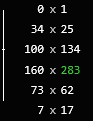
Min Diff = 100Difference = Above 100
Result: Shown Imbalance
 Highlights
The Highlights feature allows you to automatically mark important order flow events directly on the footprint.Highlights can be used to identify large volume, delta extremes, imbalances, unfinished auctions, POC levels, VWAP, and other significant price levels.
To configure highlights, open the Highlights window from the FP>>> menu.
Available Highlight Types
You can create highlights for:- Buy Imbalance
 Sell Imbalance
 Volume
- Delta
 Positive Delta
 Negative Delta
 Buy Volume
 Sell Volume
 Unfinished Auction
- POC
 VWAP
VWAP Closed Price
Threshold
The Threshold setting controls the minimum value required before a highlight is triggered.Example
Volume HighlightThreshold = 500
Only price levels with volume greater than or equal to 500 will be highlighted.
Imbalance %
Used with Buy Imbalance and Sell Imbalance highlights.Controls the minimum imbalance ratio required before a level is highlighted.
Example
Imbalance % = 300Ask = 300
Bid = 100
Result: Highlight triggered.
Color
Controls the highlight color.Each highlight type can use its own custom color.
Hollow
Controls how the highlight is drawn.- Enabled = Outline only
- Disabled = Filled highlight
Size
Controls the thickness of the highlight border.Higher values create a thicker outline and make highlighted levels easier to spot.
Opacity
Controls highlight transparency.Available values:
- 25%
- 50%
- 75%
- 100%
Consecutive (One of the Most Powerful Highlight Features)
The Consecutive setting requires multiple adjacent price levels to meet the highlight condition before a highlight is displayed.For example, if Consecutive = 3, DeltaFlowprint will only highlight the area when 3 qualifying levels occur directly next to each other.
This is one of the most powerful filtering features for identifying stacked imbalances, stacked volume, and other strong order flow activity while filtering out isolated signals and noise.
- 1 = Every qualifying level
- 3 = Three consecutive levels required
- 5 = Five consecutive levels required
Extend
The Extend setting projects highlighted levels forward across future bars.When enabled, the highlight remains visible until price revisits and trades through the level.
This can help identify potential support and resistance zones created by significant order flow activity.
Lookback
Controls how many historical bars DeltaFlowprint will monitor for active highlights.Example
Lookback = 50Only highlights created within the last 50 bars will be tracked and displayed.
Reducing the Lookback value can help keep the chart clean and focused on recent activity.
Available Highlight Types
Buy Imbalance
Highlights price levels where Ask volume significantly exceeds Bid volume based on your Imbalance % and Threshold settings. Sell Imbalance
Highlights price levels where Bid volume significantly exceeds Ask volume based on your Imbalance % and Threshold settings. Volume
Highlights price levels where total traded volume exceeds the configured Threshold value. Delta
Highlights price levels where the absolute delta value exceeds the configured Threshold.Both positive and negative delta values can trigger this highlight.
Positive Delta
Highlights price levels where positive delta exceeds the configured Threshold.Used to identify strong buying pressure.
Negative Delta
Highlights price levels where negative delta exceeds the configured Threshold.Used to identify strong selling pressure.
Buy Volume
Highlights price levels where Ask volume exceeds the configured Threshold.Used to identify aggressive buying activity.
Sell Volume
Highlights price levels where Bid volume exceeds the configured Threshold.Used to identify aggressive selling activity.
Unfinished Auction
Highlights bar highs and lows where both Bid and Ask volume are present.This indicates the auction was not completed at that price level.
POC
Highlights the Point of Control (POC) for the bar.The POC is the price level with the highest traded volume within the footprint.